UniScribe Review 2026: Is the AI Video Transcription Tool Worth It?
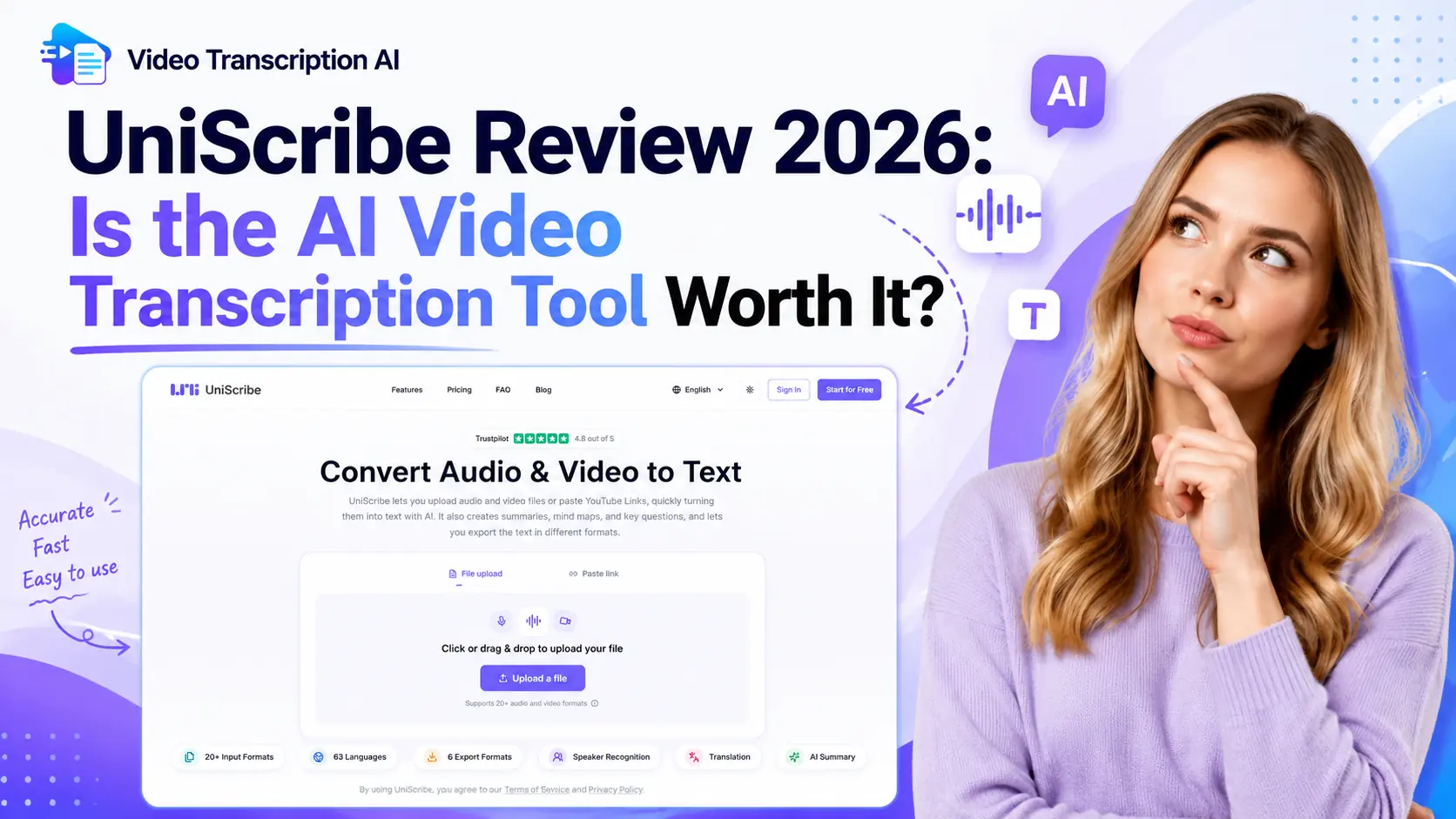
AI transcription tools have made video to text conversion easier and faster. Upload a file, wait for processing, and export the transcript - almost any AI transcription tool can handle these steps. However, the real user experience is often shaped by the issues that only become clear after actual use. How long does it take to process a large file? Is the free plan enough for regular use? Can it accurately separate multiple speakers? Does it allow editing after transcription? And are the generated summaries and subtitles actually ready to use?
For students, journalists, researchers, content creators, and teams that regularly work with meeting recordings, choosing a free AI video to text converter is about much more than comparing the number of features available.
This review explores UniScribe's main features, transcription workflow, pros, cons and its pricing plans. We'll also compare UniScribe with other popular AI transcription tools to help determine which converter may be the better choice.
UniScribe: A Simple and Efficient AI Transcription Tool
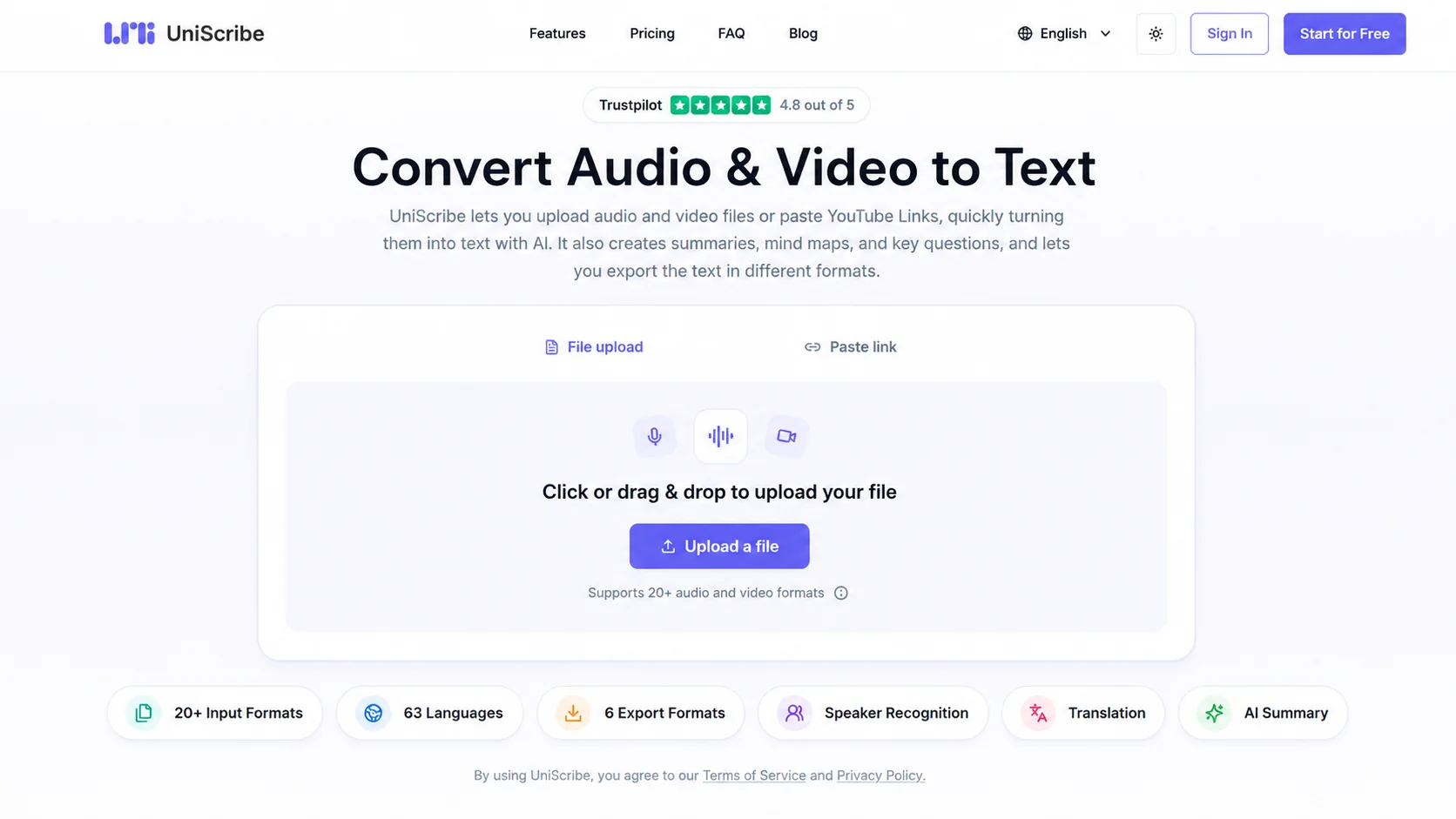
The first thing to notice after opening UniScribe is the simple layout. Unlike some AI tools that hide key features behind multiple menus, most options are visible from the dashboard. New users can quickly understand how the tool works without spending much time learning the system.
Based on what's on its website, UniScribe is an AI-powered transcription tool that converts video and audio files into searchable text. Beyond transcription, it can generate summaries, translate content, extract important information, create mind maps, and support various export formats. The tool focuses on fast processing, file management, follow-up setting and support for larger files.
Core Features
UniScribe's distinct features include multiple upload options, support for longer recordings, custom vocabulary, transcript editing tools, AI summaries, and file management.
Multiple Ways to Upload Videos
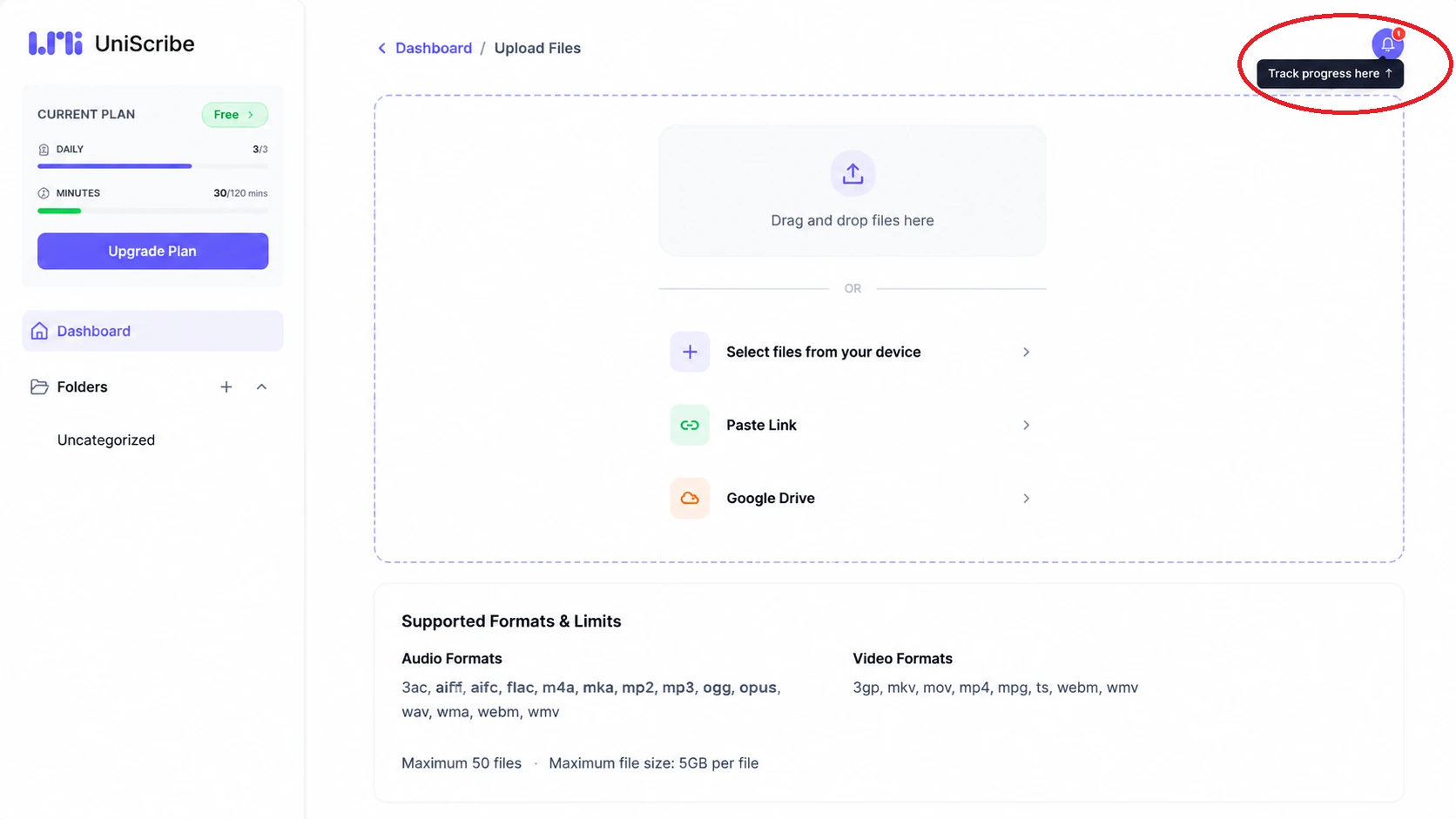
UniScribe supports three import methods: local files, media links, or Google Drive. So users may select files from their local device or paste online video links.
Long Video Processing
According to UniScribe's website, each file can be up to 5GB in size and up to 5 hours in length. It also supports batch processing for multiple files in one workflow.
Custom Vocabulary
With custom vocabulary, users can add important terms such as names, product terms, and specific terminology before transcription. These terms help the system better recognize words that may not be common in general transcription models.
Find and Replace Terms
UniScribe includes a find-and-replace tool for transcript editing. Users can search for specific words or phrases and replace multiple matches at the same time.
AI Summary Templates and Content Organization
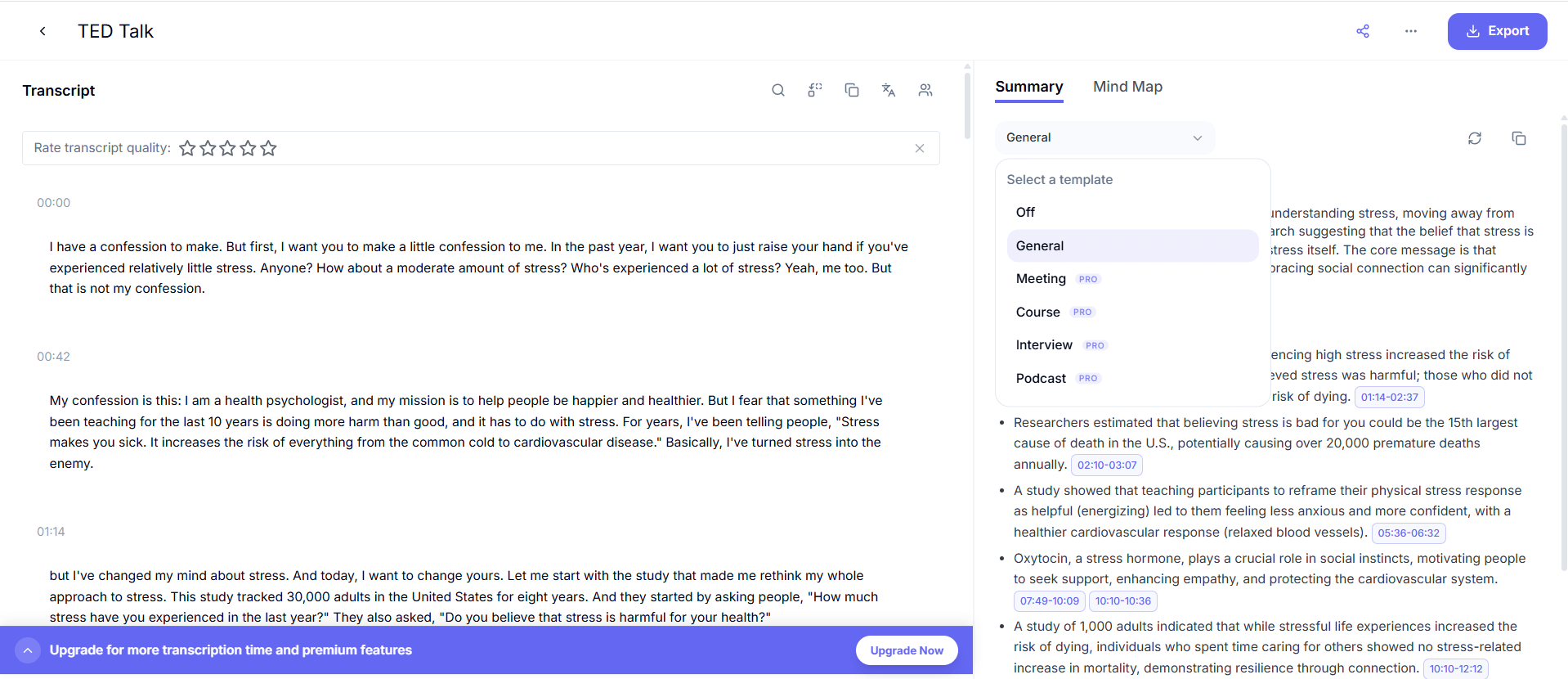
UniScribe has AI summary templates, including General, Meeting, Course, Interview, and Podcast. They are used for different purposes, for example, Meeting highlights decisions and action items, and Course organizes concepts and chapters.
Storage History and File Management
After registration, UniScribe saves upload and transcription history. Users can organize files into folders and manage different projects. Multiple files can also be processed at the same time, with tasks running in the background.
UniScribe Video to Text Review Results
UniScribe is tested across three stages of the transcription workflow: before transcription, during transcription, and after transcription.
Before Transcription
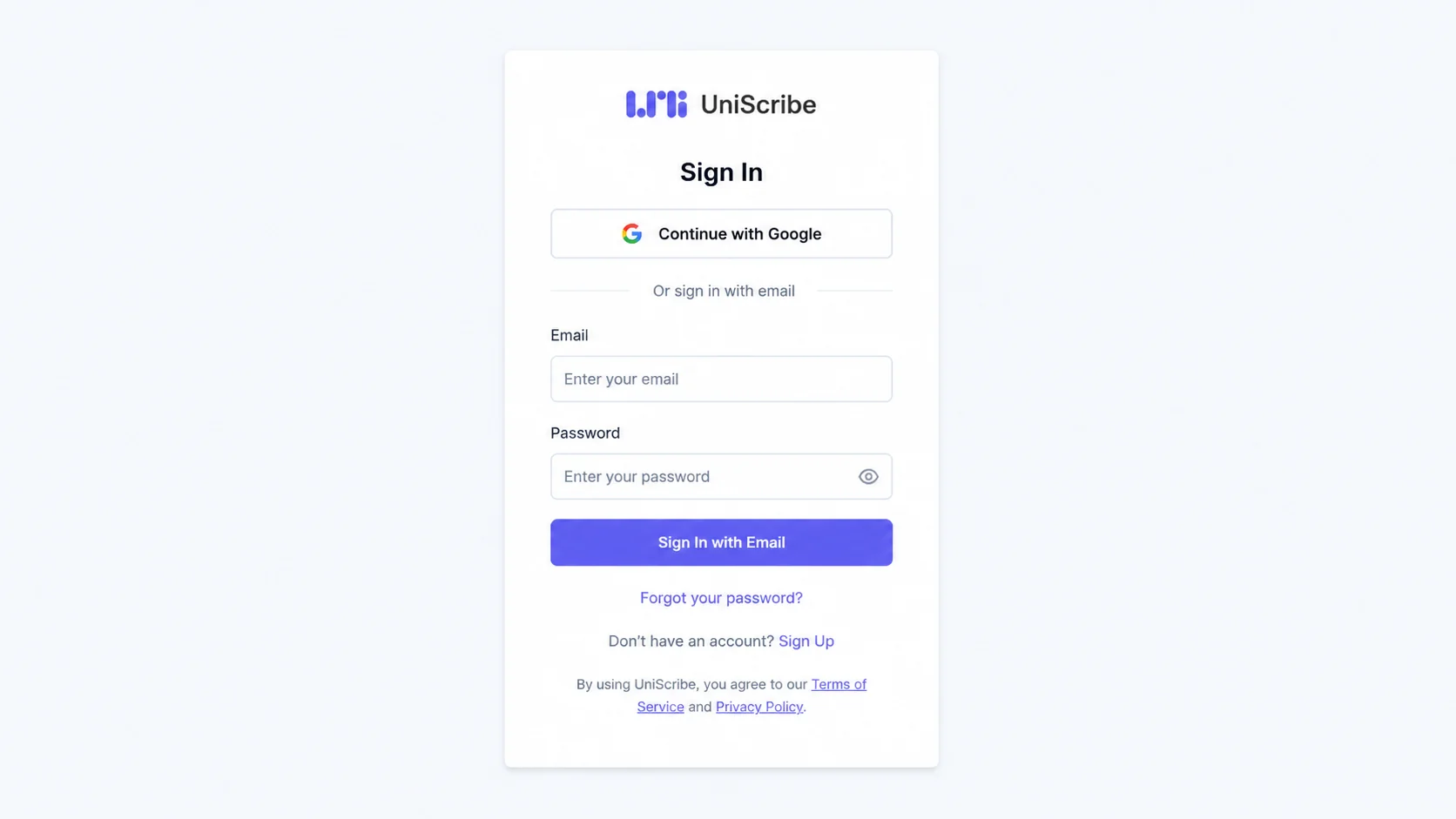
- Before accessing the workspace, users who open this tool for the first time need to create an account.
- UniScribe does not immediately start transcription after upload. Instead, it provides several options to customize the transcription task, including language selection, speaker identification, custom vocabulary, and AI summary settings.
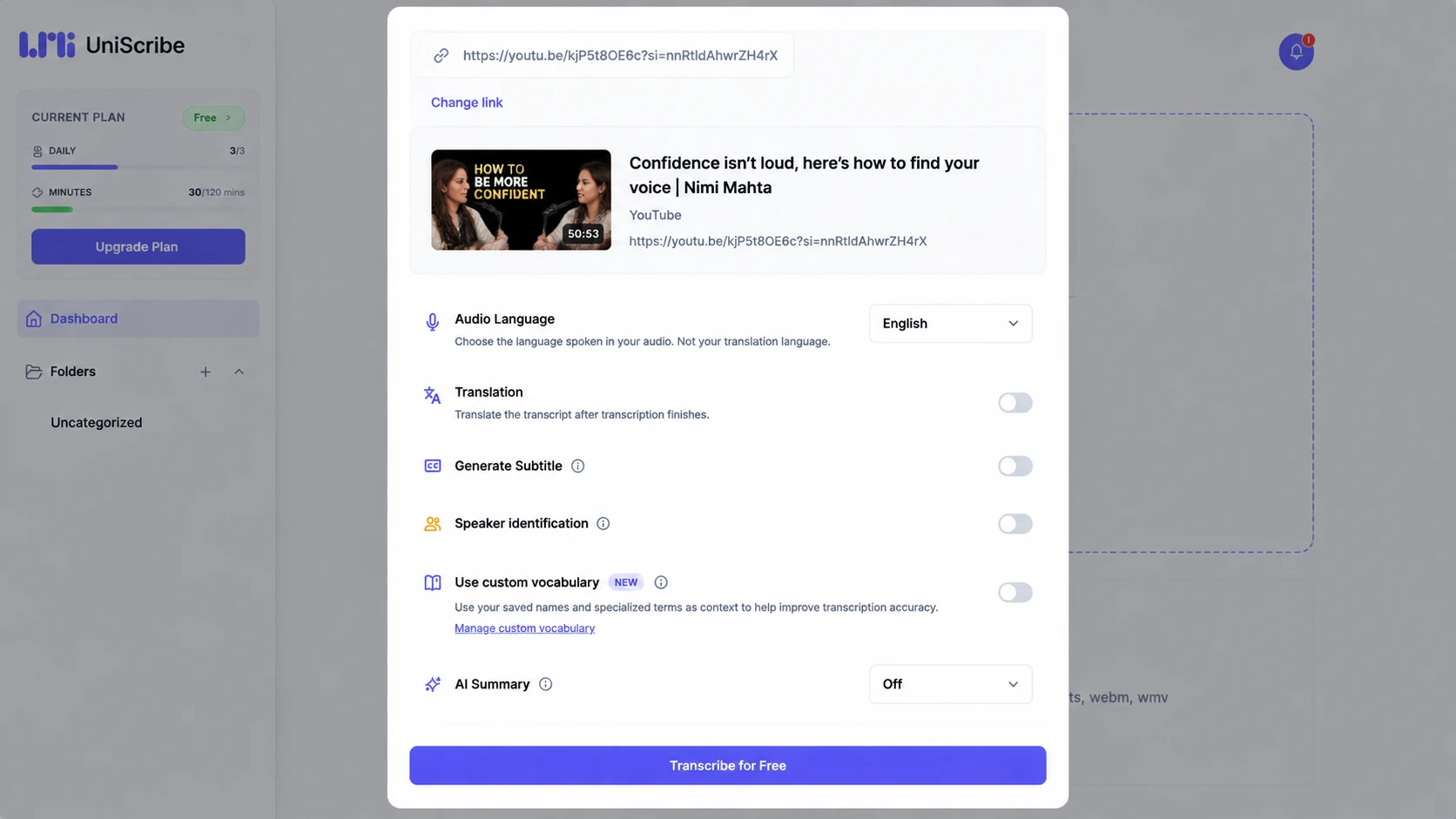
- As soon as the file is uploaded, it will be stored in the workspace. Users can continue adding files or move on to other tasks while UniScribe still processes files in the background.
During Transcription
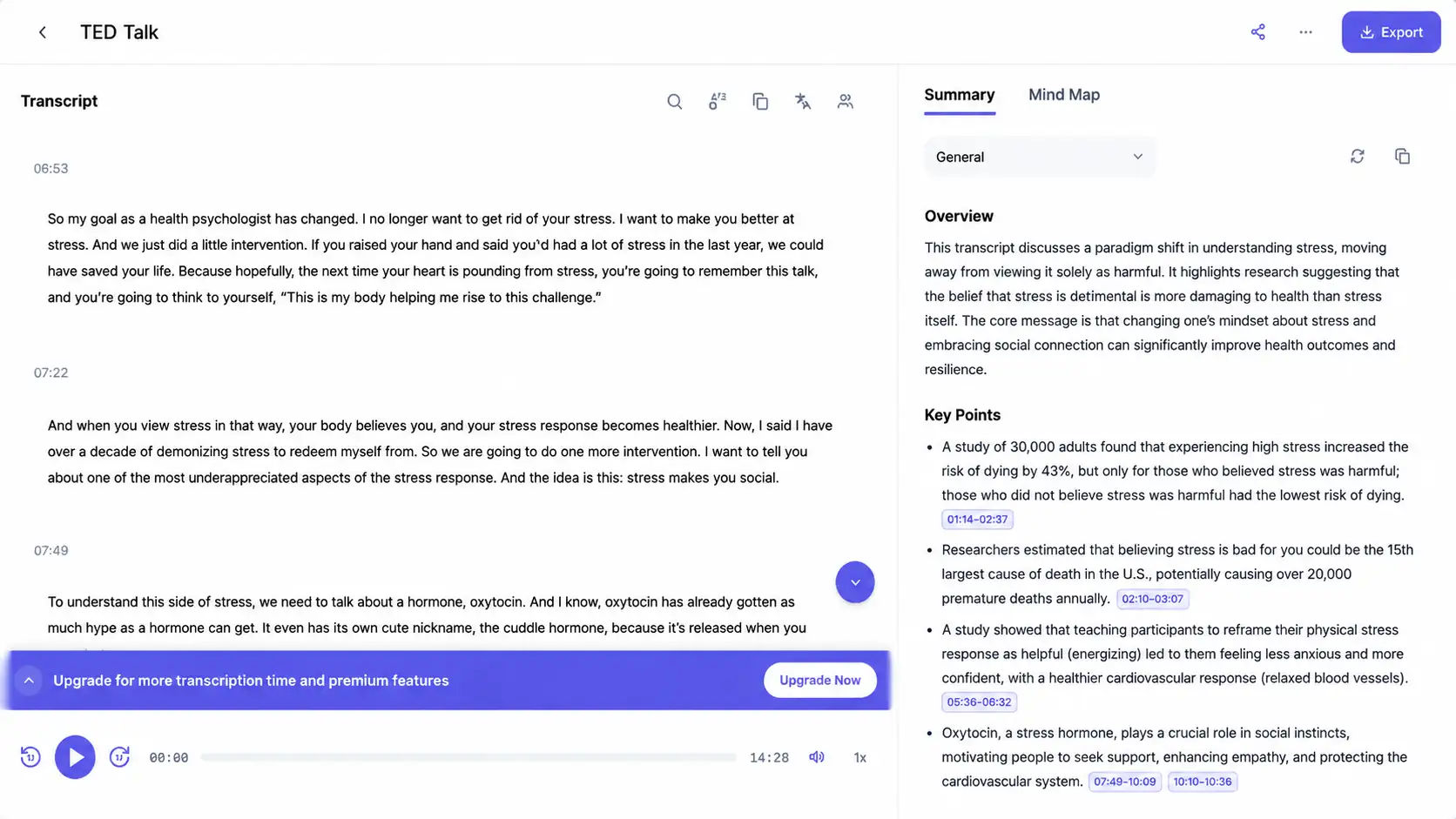
UniScribe converts a 15-min video in around two minutes during testing.
- It automatically detects speech and adds timestamps to each section. The punctuation is generally accurate, which makes the transcript easier to review and edit.
After Transcription
- This video to text generator creates notes like overview, mind map, key takeaways, and other templates for various content types.
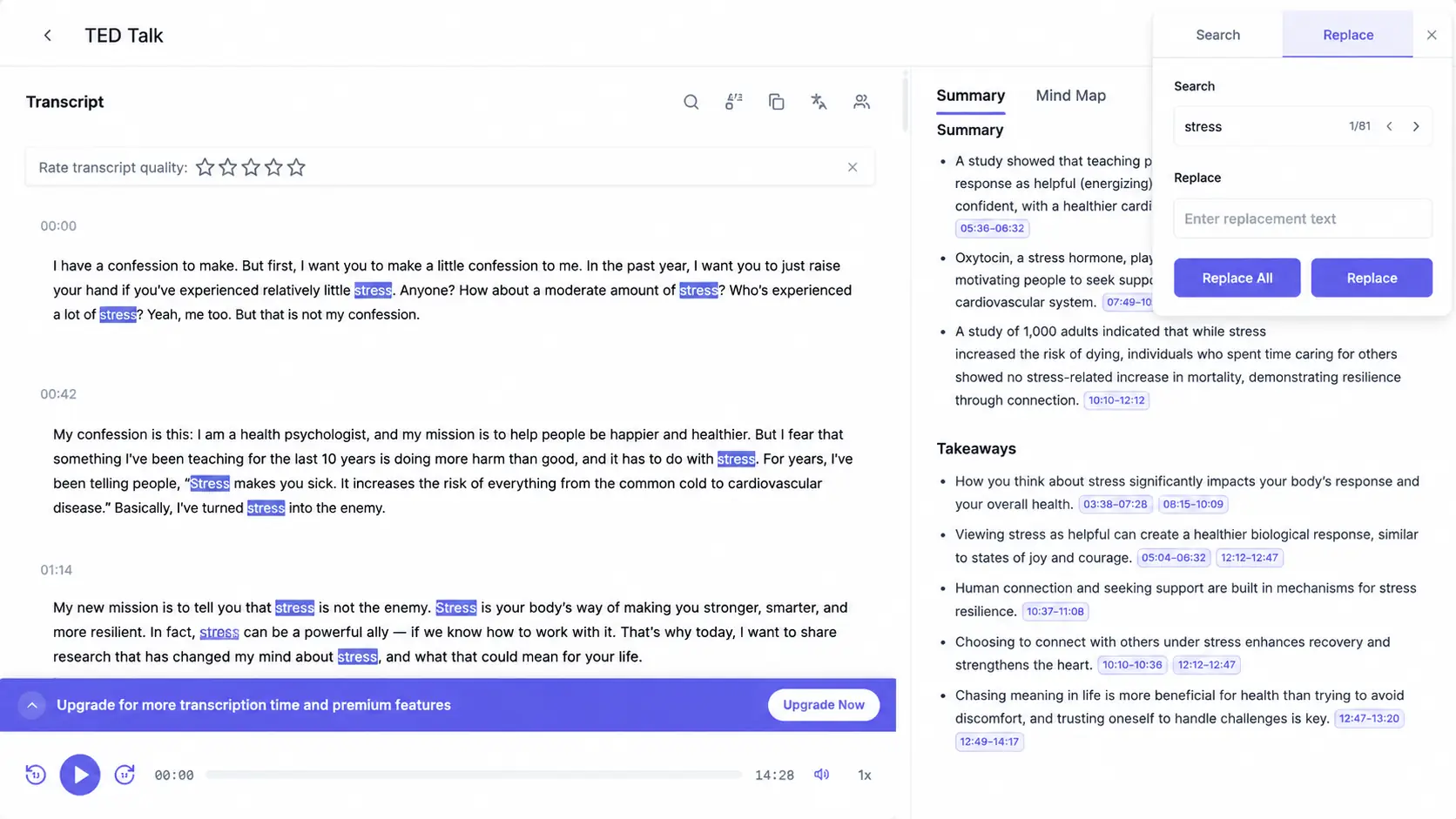
- UniScribe's find and replace feature is tested to see how it works. After entering a keyword, the tool highlights all matching results in the transcript, and helps locate where the term appears.
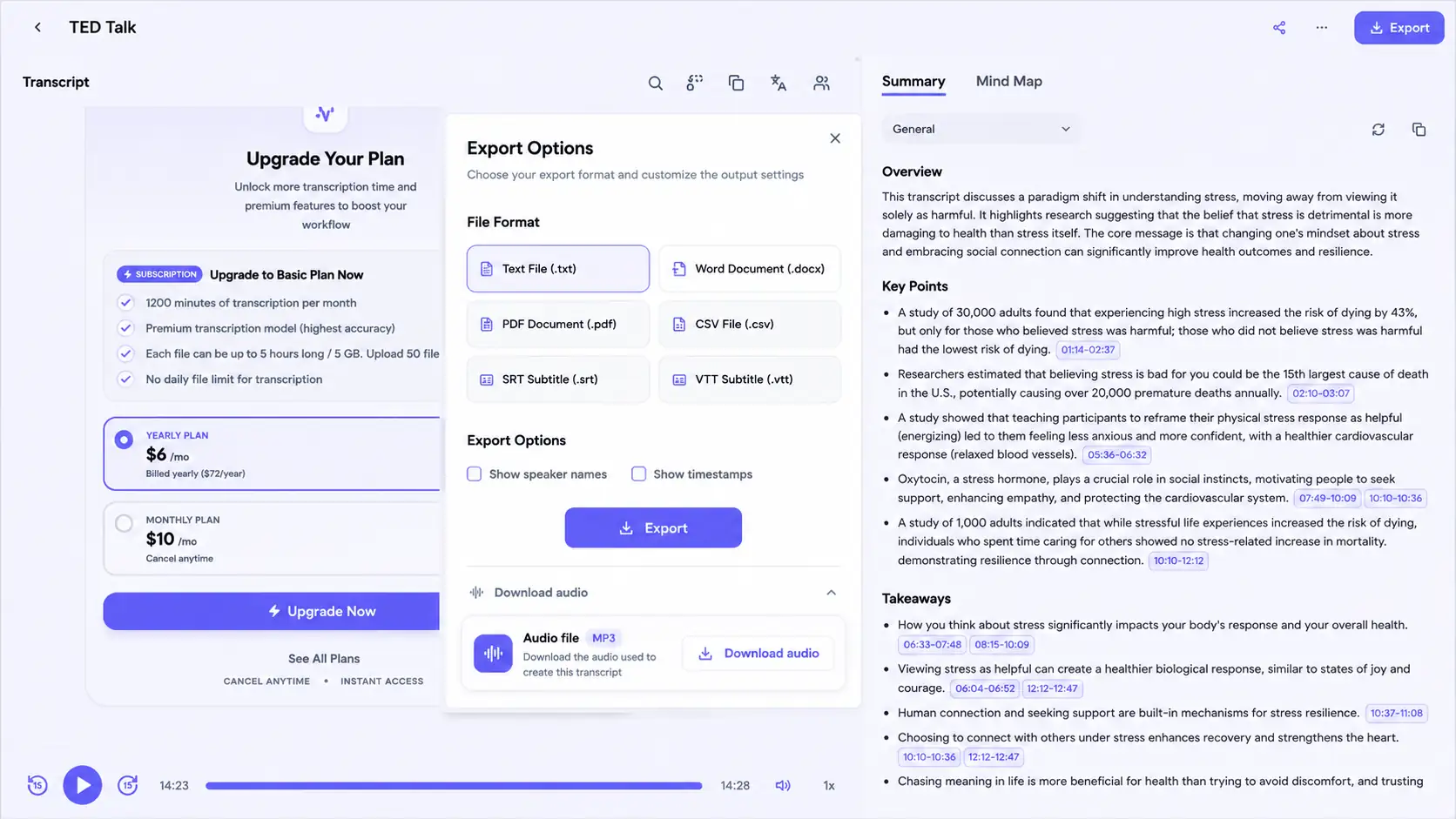
- After editing the transcript, UniScribe supports exporting content in formats, including TXT, DOCX, PDF, CSV, SRT, and VTT. Export settings also allow users to include speaker names and timestamps when needed.
Strengths & Drawbacks of UniScribe Video to Text
Based on the feature breakdown and hands-on experience, the main pros and cons of UniScribe can be summarized clearly.
Things Worth Praising
- The overall workflow is easy to follow. Uploading, configuring, reviewing, and exporting are arranged in a clear process.
- The editing experience reduces repetitive corrections. While transcripts may still require occasional adjustments, the editing workflow makes it much faster to fix repeated errors and refine longer transcripts.
- Custom vocabulary, find and replace, and AI Summary templates are all practical organization features. They improve transcript accuracy and provide a quicker way to organize long recordings.
- From importing videos through local files, links, or Google Drive to exporting transcripts as documents or subtitles, UniScribe provides flexible options for different contents.
What Could Be Better
- Registration is required before entering its dashboard. It might be an extra step for people who only need to transcribe a short video once and don't want to sign up.
- The free plan feels more like a limited trial than a solution. Daily task limits and the maximum duration per file can quickly become restrictive.
- Some of the useful options are visible but locked behind paid plans. Users cannot try more summary templates, it can be difficult to know whether the upgrade suits their needs.
UniScribe: Is It A Free Transcription Tool?
Free Features
UniScribe's free plan works well for trying out the basic transcription experience before upgrading to a paid subscription. It includes 120 transcription minutes per month, with a daily limit of three files and a maximum file length of 30 minutes. Free users can upload one file at a time, use multilingual transcription, generate AI summary with one template, and export transcripts in six formats.
For social media clips, quick lectures, and occasional transcription needs, the free plan is good enough to get started. However, it becomes less suitable for longer recordings or frequent use. The 30-minute file limit can be a challenge for long contents, which may need to be divided into smaller sections before processing.
Paid Features
Paid plans remove many of the limitations that can affect regular transcription workflows. From basic, standard to pro plans, users get 1,200 to 6,000 transcription minutes per month, support for files up to five hours long or 5GB in size, and the ability to upload up to 50 files at once.
Subscription means a wider range of advanced features, including premium transcription models, custom vocabulary, speaker identification, YouTube video transcription, bulk processing, API access, and more templates for meetings, courses, interviews, and podcasts.
UniScribe Video to Text vs Other AI Converters
To make this review more objective and see which tool fits your workflow, we also compare UniScribe with other AI transcript generators, including NoteGPT and Otter.ai.
| Capability | UniScribe | NoteGPT | Otter.ai |
|---|---|---|---|
| Free Access | Limited | Limited | Limited |
| Transcription Speed | ⭐⭐⭐⭐ | ⭐⭐⭐⭐ | ⭐⭐⭐ |
| Local File Upload | Supported | Supported | Supported |
| Media Link Import | Supports multiple platforms | Mainly YouTube | Not a core feature |
| Text Exports | TXT, Docx, PDF, CSV, SRT & VTT | TXT & SRT | TXT, Docx, PDF, SRT |
| Speaker Identification | Supported | Depends on specific features | Supported |
| Batch Processing | Supports up to 50 files | Supports some batch tasks | Not a major strength |
| Live Meetings | Not a primary focus | Not a primary focus | Core feature |
| Best For | Interviews, courses, podcasts, and recorded content | YouTube learning and knowledge organization | Zoom, Google Meet, and Microsoft Teams online meetings |
Another Alternative for UniScribe Video to Text
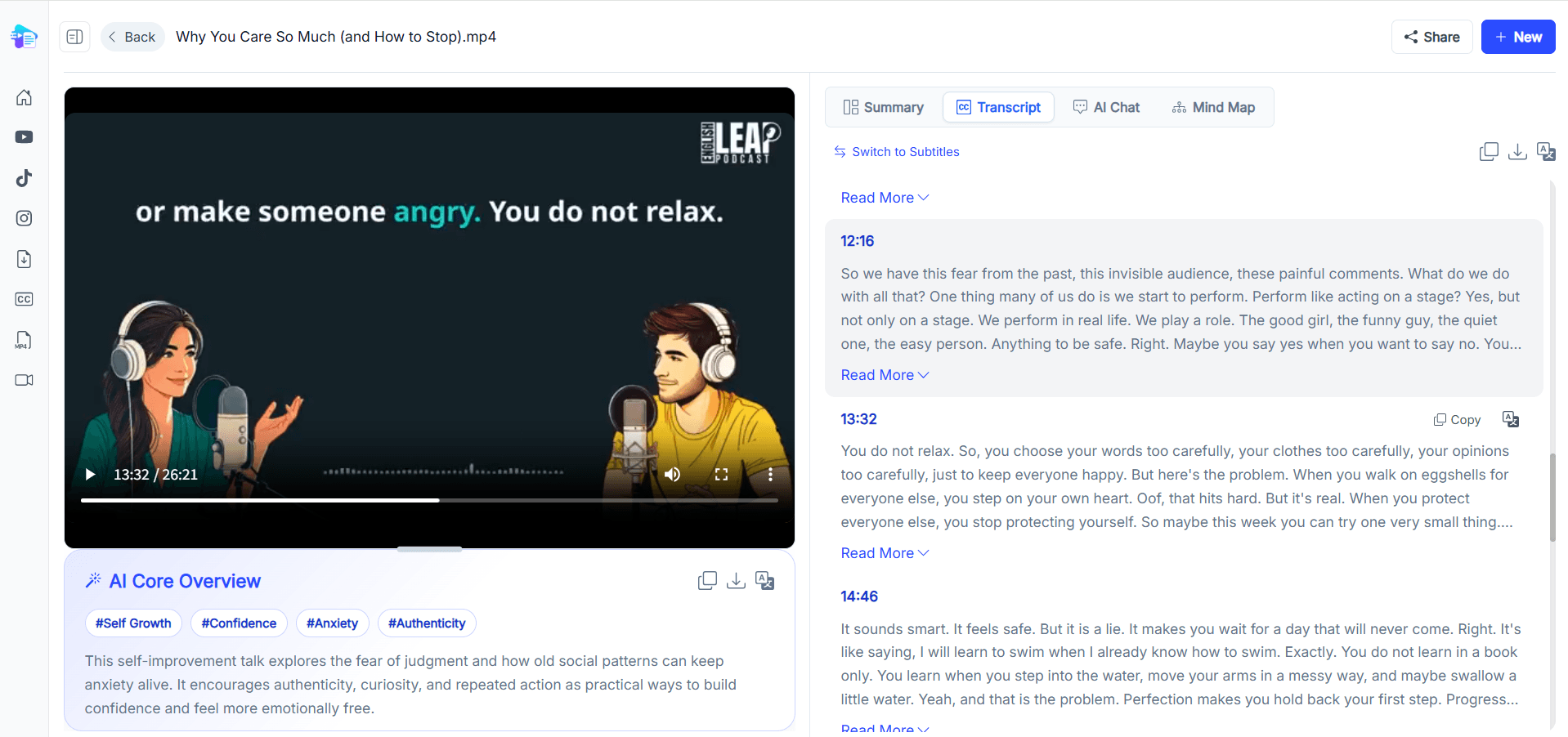
If you've realized your bottleneck was never getting a transcript but checking it, another workflow may be more suitable. Video Transcription AI focuses more on connecting transcript with video playback and AI content analysis.
It offers all features for free. In the output interface, users can click timestamps or transcript to jump directly to the corresponding video part. During proofreading, the video, audio tone, and transcript can be reviewed together.
Users can continue to work with the transcript through AI chat. For example, ask what decisions were made during a meeting, what questions a client raised, where a specific topic was discussed, or which sections could be repurposed into blog posts and social media content.
How We Compared UniScribe Video to Text With Others
A good tool should not be judged only by the number of features listed on its website. The comparison focuses on how each tool finishes the transcription, from upload to export.
Use the same video files in each video transcriber:
- How easily users can upload local files or import videos through links
- The limitations of the free plan
- Transcription speed and quality
- Speaker identification with multiple participants
- The ability to review, edit, and correct transcripts
- How many export formats
- AI features such as summaries, translations and questions
- File management
Because transcription quality can change depending on accents, background noise, overlapping speech, recording equipment, and specific terminology, this comparison should not be treated as a definitive accuracy ranking. The most reliable approach is to test each platform with a representative file from your own workflow before choosing a paid plan.
In Short
UniScribe is better for users who need to process large volumes of videos and manage their accounts in the long run. NoteGPT is better suited for users focused on YouTube learning and content summarization, while Otter.ai is a good choice for real-time online meetings. Video Transcription AI, which offers all features for free, is a more lightweight option for users who rely on detailed review of transcripts, or for those who want to continue using AI to generate summaries, study notes, meeting minutes, and social media content.
Frequently Asked Questions About UniScribe
Is UniScribe free?
Yes, but with some limits. The free plan includes 120 minutes/month, 30 minutes per file and 3 files a day.
Can UniScribe transcribe YouTube videos?
Yes. UniScribe supports direct YouTube links, so you do not need to download and re-upload the video first.
Does UniScribe generate subtitles?
Yes - and SRT/VTT are free. These formats are available on the free plan, which is more generous than many tools that place subtitle downloads behind a paywall.
Is UniScribe good for long videos?
Yes, mainly on a paid plan. Paid users can process files up to five hours long or 5GB in size.
Is AI transcription safe for confidential videos?
UniScribe states that user files are handled securely. For confidential recordings, users should review the platform's privacy policy before uploading sensitive content.